Start Tracing
This section explains how to set up a CAN device and go on bus.
1. Configure CAN Settings
First, you must set up the CAN device parameters correctly corresponding to the CAN network and CAN interface. You can set the parameters by going to Tools in the menu bar, then selecting Settings.
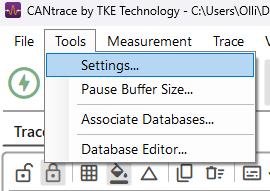
For detailed instructions on specific hardware, refer to the links below:
- How to set up Vector
- How to set up Kvaser
- How to set up Peak
- How to set up TotalPhase
- How to set up Softing
2. Start Tracing
Once configured, you can start tracing by going to Measurement > Start. Alternatively, use the shortcut key F2.
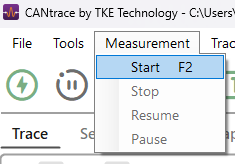
Alternatively, press the Start button in the toolbar: 
Before going on bus, you can enable logging from Logging Settings.
You may also add a .dbc file to decode the bus traffic using Associate Databases.
Important Licensing Information
Important
The license is tied to the serial number of a CAN interface or to the serial number of the PC.
If no licensed hardware is found when going on bus:
- All CAN interfaces are automatically set to inactive.
- They must be manually activated in the CAN Settings dialogue after a new license has been added or a licensed hardware device has been connected to the computer.