Associate Databases
With CANtrace you can associate database files to the configured software channels. Data interpretation provided by the database is now available on the Trace, Send, Data, and Graph tabs.
Consult the Hardware Interfaces sections to See how to set up software channels.
Configuration Steps
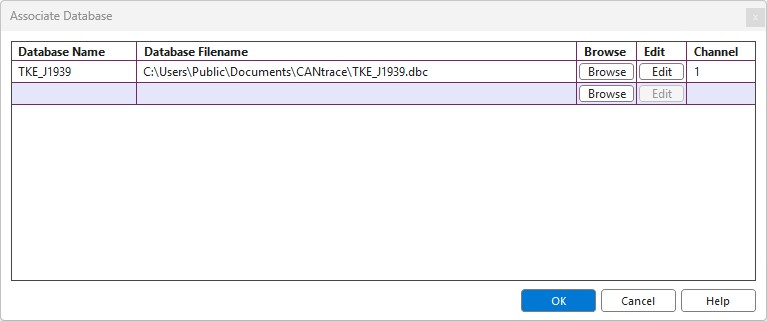
- Select Tools > Associate Database or press the Associate Database button
 on the main toolbar to open the Associate Database window.
- Click Browse on the first empty row.
- Navigate to the desired database file and click Open.
- Select a channel from the Software Channel drop-down box. The default channel is 1.
Note: Channel 0 is the log playback channel while channels 1 to 9 are used for actual CAN hardware.
Database Management
- Multiple Databases: Multiple databases can be assigned to the same software channel, provided that there are no conflicting message names.
- Editing: A database can be manually edited by clicking Edit. This opens the Kvaser Database Editor which comes bundled with CANtrace.
- Removing: To remove a database, right-click on the same cell and select Remove Database.
- Finalize: Click OK to close the Associate Database window.
Database Validity
Database Validation: CANtrace does not validate the consistency/correctness of the associated database(s). Erroneously configured messages and signals will get a bad interpretation in the Trace window. It is recommended to check your database file's consistency before using it. If you are using Vector CANdb++ Editor, select File > Consistency Check.