CANtrace UI
This section describes the basic user interface of the CANtrace program.
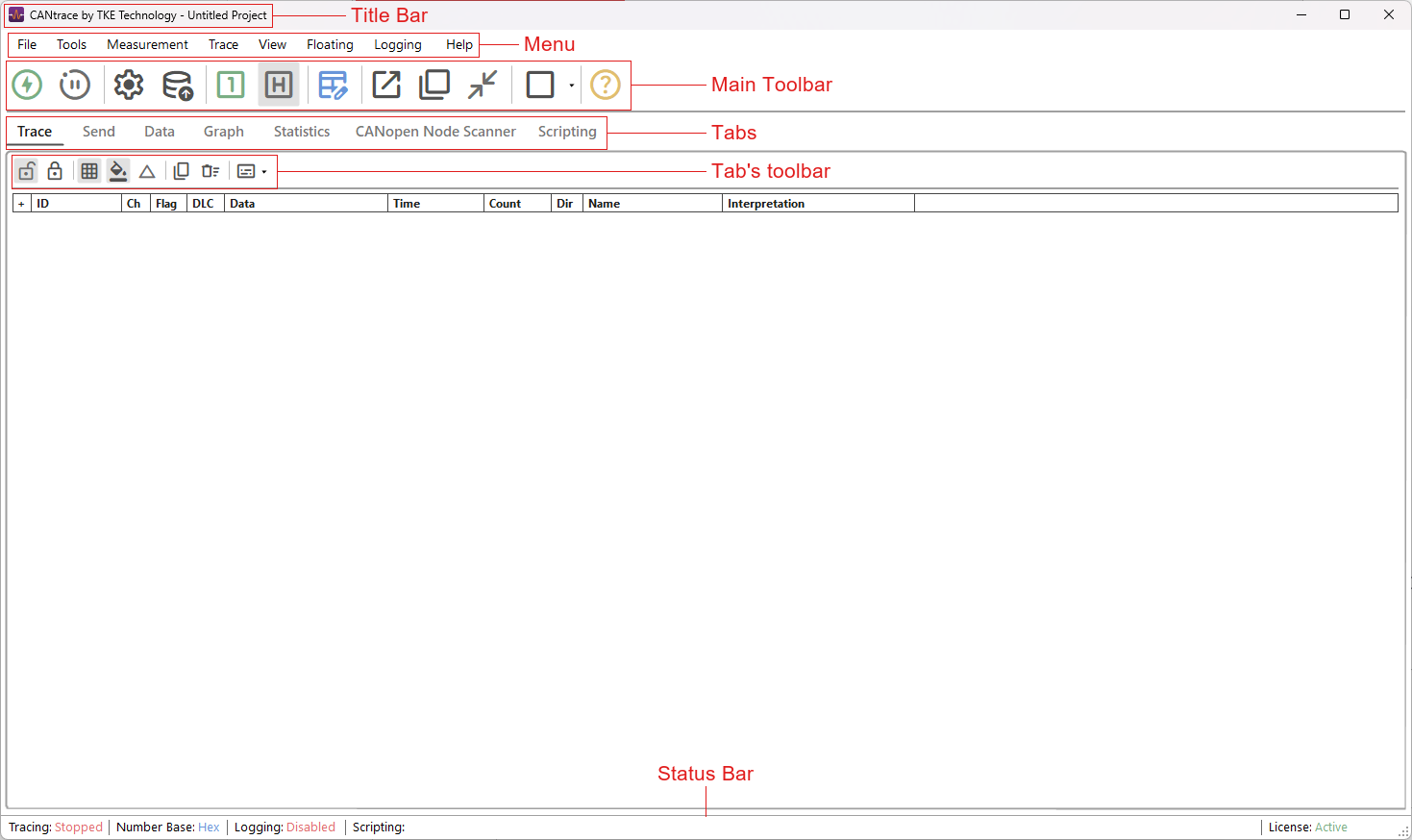
The program title bar displays the path of the project file you have opened with CANtrace. The status bar displays the current data and ID format, the current on/off bus status, the status of logging, the status of scripting, the log file playback progress, and the license state.
Menu Descriptions
| Menu | Description |
|---|---|
| File | Offers commands for creating, loading, and saving project files; configuring database (DBC) files; and opening the Kvaser Database Editor. |
| Tools | Offers commands for setting up CAN interfaces and go on/off bus commands. |
| Measurement | Offers commands to control bus off/on and pause/resume. |
| Trace | Displays the name of the currently selected tab. |
| View | Used to set which tabs should be visible or invisible. Disabled while on bus or while any tab is floating. |
| Floating | Offers commands for floating tabs into their own windows and docking them back. See Tab Layout. |
| Logging | Offers commands for configuring logging and DBC logging. |
| Help | Offers commands for opening the help document and importing licenses. |
Toolbar
The toolbar offers a convenient way to quickly access the most commonly used commands. Buttons that cannot be used at the moment, for example CAN Settings while on bus, are shown in light grey.
| Icon | Name | Description |
|---|---|---|
 |
Start | Initializes the configured CAN interfaces and starts tracing (goes on-bus). |
 |
Stop | Stops tracing and disconnects the configured CAN interfaces (goes off-bus). |
 |
Pause Trace | Pauses tracing and stores incoming data in a temporary buffer. Also pauses active file logging. |
 |
Resume Trace | Resumes tracing and replays the data buffered during the pause. Resumes file logging if "Logging while OnBus" is enabled. |
 |
CAN Settings | Opens the CAN Interfaces Settings window. This button is disabled while active on the bus. |
 |
Associate Database | Opens the dialog to add, remove, or edit associated databases. |
 |
HEX | Switches display formatting for all CAN data and identifiers to hexadecimal. |
 |
DEC | Switches display formatting for all CAN data and identifiers to decimal. |
 |
Database Editor | Opens the external Kvaser Database Editor. |
 |
Float current tab | Floats the selected tab into its own window. See Tab Layout. |
 |
Float all tabs | Floats every docked tab into its own window. |
 |
Dock all tabs | Docks every floating tab back to the main window. |
 |
Split tabs | Selects the layout of the main window: Main view, Side by side, Top and bottom or Grid (2 × 2). See Tab Layout. |
 |
Help | Opens the application help documentation (this document). |
Status Bar
The status bar provides a real-time overview of the current application state:
- Tracing: Indicates whether the application is currently On-Bus or Off-Bus.
- Number Base: Displays whether identifiers and data are formatted as Hexadecimal or Decimal.
- Logging: Shows whether log file generation is Active or Disabled.
- Scripting: Displays the current execution status of the integrated Python script.
- Playback: Shows how far the log file has been played back with a progress bar and a percentage, also after going off bus, or N/A when log file playback is not in use. A repeat icon is shown when Loop Playback is on. Hover over it to see the log file name, the played time and the full length of the log file. See Logfile Playback.
- License: Shows the validation status of the current application license.