Project Management
CANtrace Project File
A CANtrace Project File is a configuration file that stores a project’s settings and data. These project files use the .cantrace extension and are essential for saving and loading project settings. The project file allows users to easily manage configurations and makes it possible to return to a project later with the same settings.
Functions You Can Perform with a CANtrace Project File
- Create a new project
- Open an existing project
- Save the current project
- Save the project under a new name
File Format Options
Within CANtrace, the Open and Save dialog boxes allow you to choose between two file formats for saving and opening projects:
- .cantrace: The default project file format. These files can be opened by double-clicking them in Windows Explorer.
- .xml: An alternative project file format.
File Menu Overview
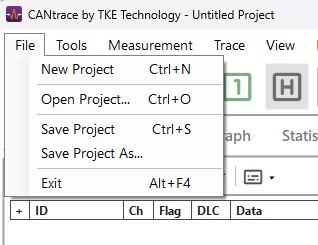
The File menu provides various options for managing your CANtrace projects. Here’s a breakdown of each option:
| Name | Description |
|---|---|
| New Project | Create a new, empty project. |
| Open Project... | Open an existing project file. Allowed file extensions are .cantrace or .xml. |
| Save Project | Save the current project in the chosen folder. If no name or location is set, "Save As" will be activated. |
| Save Project As... | Save the project with a new name and location. Allowed file extensions are .cantrace or .xml. |
| Exit | Close the CANtrace program. |
Project Auto-Loading
The most recently saved or opened project file will automatically load when CANtrace restarts. However, if you open a .cantrace project file by double-clicking it in Windows Explorer or launching it via the command prompt, that specific file takes priority.
CANtrace can also open project files that were saved in different versions of the program, provided that the underlying file format has not been altered. If a project file is incompatible, an error notification will be displayed.
File Integrity Warning
Do not modify the contents of a .cantrace project file using external programs. Manual edits can corrupt the file structure, causing it to become completely unreadable or incompatible with CANtrace.
File Path Handling in Project Files
CANtrace uses both relative and absolute paths to manage file locations within a project, ensuring flexibility and portability.
- Relative Paths: If a referenced file (such as a playback log file, log file, DBC log file, or database file) is located in the same directory as the project file or within its sub-directories, CANtrace stores the path as a relative path. Alternatively, it may convert the path using Windows environment variables to enhance portability.
- Absolute Paths: If a referenced file is located outside the project file’s directory, CANtrace stores the file location as an absolute path.
Regardless of how file paths are stored, within the CANtrace application, all file references are converted to and used as absolute paths during operation.