Vector Settings
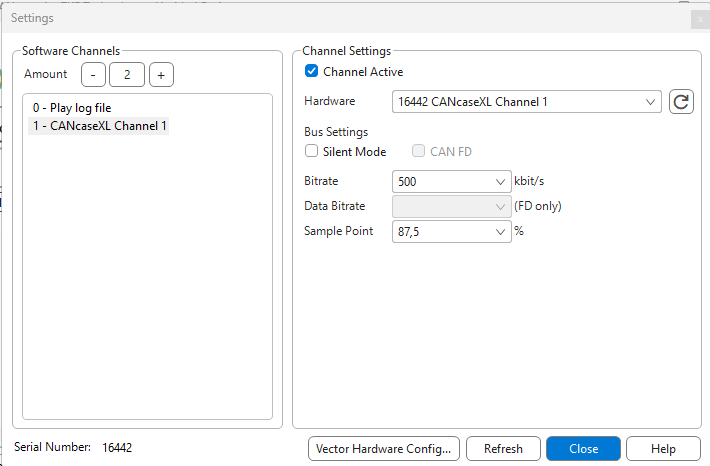
CAN Settings is used to set up your CAN interface. If you are using Vector hardware with CANtrace for the first time, you need to select which hardware channels to use.
Make sure that you have the Vector driver installed on your PC, and that the CAN hardware is plugged in and is recognized by Windows.
Configuration Steps
1.In the CAN Interfaces Settings window, click the Vector Hardware Config button to open the Vector Hardware Config tool.
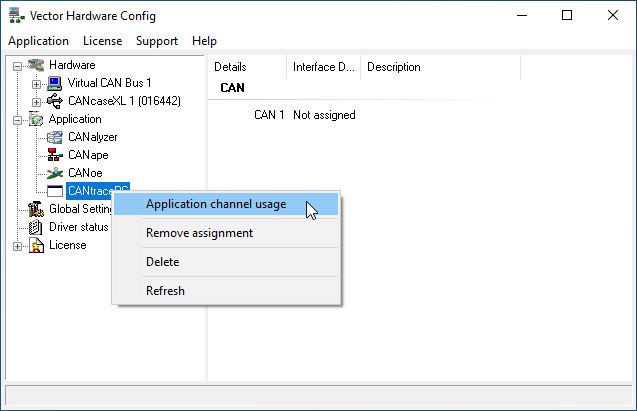
2.In the tree-view on the left, open Application, then right-click CANtracePC and select Application channel usage.
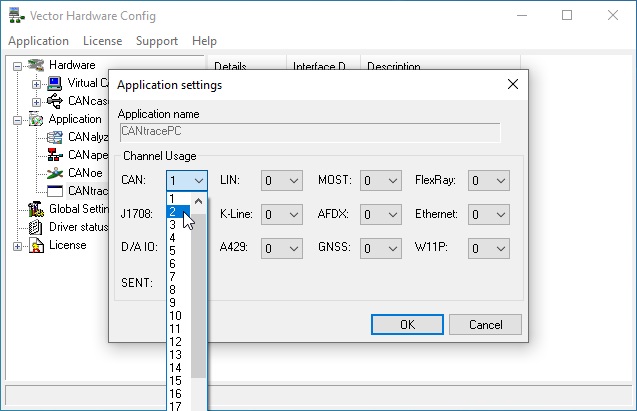
3.Select the number of channels to use with CANtrace and click OK.
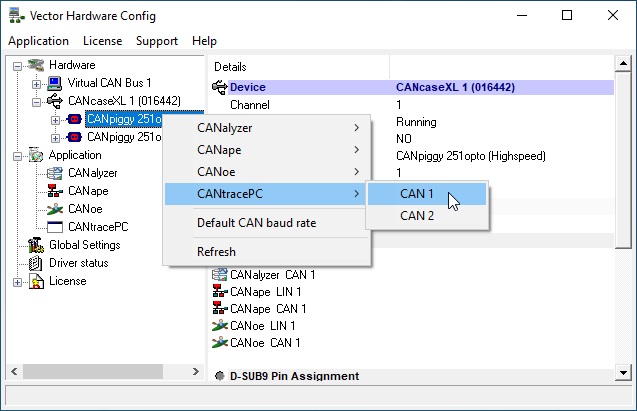
4.In the tree-view under Hardware, click open your device (e.g., CANcaseXL). Right-click on the listed CANpiggy entry and select CANtracePC > CAN 1.
5.Close the Vector Hardware Config tool.
6.In the CAN Interfaces Settings window, click the Refresh button. The configured Vector hardware channels are now available in the Hardware drop-down box.
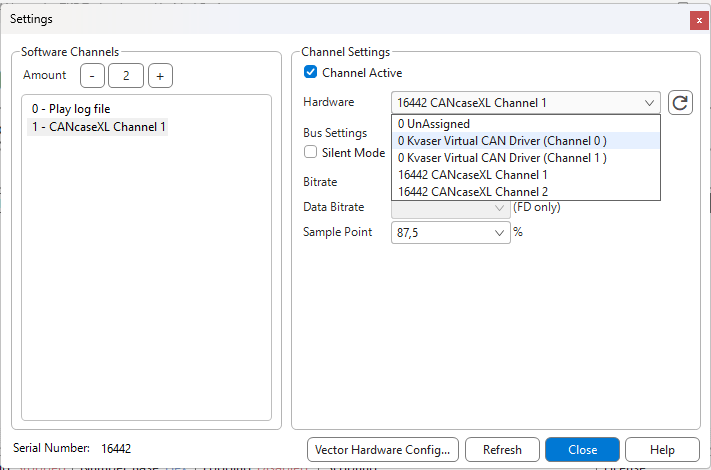
Configurable Settings
Software CAN Channel
You may define which Software Channel you assign the CAN interface to. Channels are used to manage multiple interfaces.
Channel Active
Un-checking Channel Active disables the channel, in case you do not want this CAN interface to participate in the bus communication, but want to preserve the settings for future use.
Silent mode
Configure the CAN interface to work in silent mode (won't transmit anything, won't set the ACK bit of the received messages) if the CAN interface supports silent mode.
Bitrate
Select the baudrate of the CAN interface.
Sampling point
Here you may set the sampling point. The default sampling point is 87,5% when baudrate is set to 500 kbps.
Classical CAN Configuration
| Baudrate | Sampling point 1 | Sampling point 2 |
|---|---|---|
| 1 Mbit/s | 75% | 62.5% |
| 800 kbit/s | 80% | 60% |
| 500 kbit/s | 87.5% | 62.5% |
| 250 kbit/s | 87.5% | 62.5% |
| 125 kbit/s | 87.5% | 62.5% |
| 100 kbit/s | 87.5% | 62.5% |
| 50 kbit/s | 87.5% | 62.5% |
| 20 kbit/s | 87.5% | 62.5% |
| 10 kbit/s | 87.5% | 62.5% |
| 5 kbit/s | 68% |