Data Tab
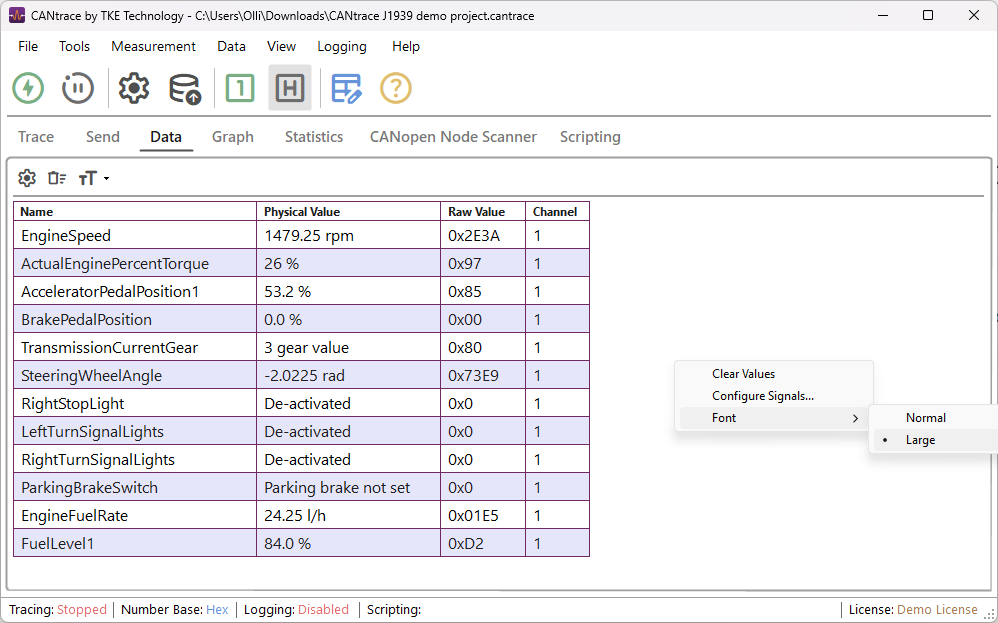
The Data tab displays the run-time values of signals (from an associated database) received from monitored CAN networks.
User Interface
Data Tab Toolbar
The toolbar provides quick access to the main data window functions. These can be accessed from right-click menu or from top menu.
| Icon | Description |
|---|---|
 |
Open Configure Signals dialog. |
 |
Clear Values from Data Tab. |
 |
Open drop-down menu to change Font Size. |
Column Descriptions
| Column Name | Description |
|---|---|
| Name | By default, this is the Signal name. It can be customized in the "Name" field within the Configure Signals dialog. |
| Physical Value | Displays the symbolic value from the signal's value table if available. If not, it shows the physical value including units. |
| Raw Value | Shows the current raw value in either Hexadecimal or Decimal, depending on the application's number format settings. |
| Channel | Indicates the software channel that received the message containing the signal. |
Configure Signals
Before adding a signal, you must first add a database. Refer to the Associate Databases section for instructions.
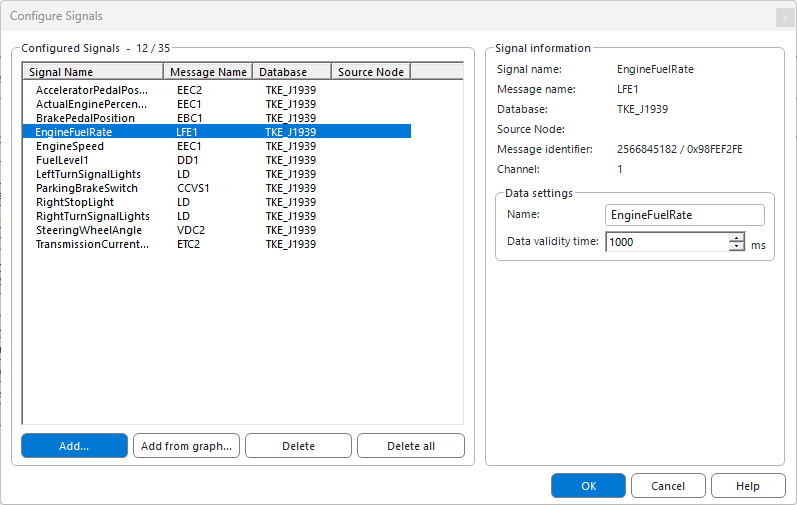
To modify the signal list, right-click the data window and choose Configure Signals or click the toolbar icon. The following window will appear:
Signal Information
When a signal is selected, its database information is displayed on the right:
- Signal Name: The original name defined in the database.
- Message Name: The parent message associated with the signal.
- Database: The name of the source database.
- Source Node: The name of the source node for the signal.
- Message Identifier: The CAN identifier for the message.
- Channel: The software channel assigned to the database.
Form Options and Buttons
| Name | Description |
|---|---|
| Add... | Add signals from the associated database. |
| Add from graph... | Import configured signals currently in the Graph window. |
| Delete / Delete all | Remove chosen signals or clear the entire list. |
| Name | An editable field to define a custom alias (e.g., changing "EngineSpeed" to "rpm"). |
| Data validity time | Determines how long a value remains visible after it is no longer detected on the CAN bus. |
Note
Changing the Name field does not modify the original database file; it only affects the display name in the Data window.
Add Signals
This dialog box allows adding signals to the Configure signals window, which in turn allows monitoring their runtime values in the Data tab and the Graph tab. Once one or more databases have been associated with the project, all the signals and messages in those databases become available in the tree-view on the left side.
The figure below illustrate the graphical layout of the Add Signal dialog box and the buttons available to the user.
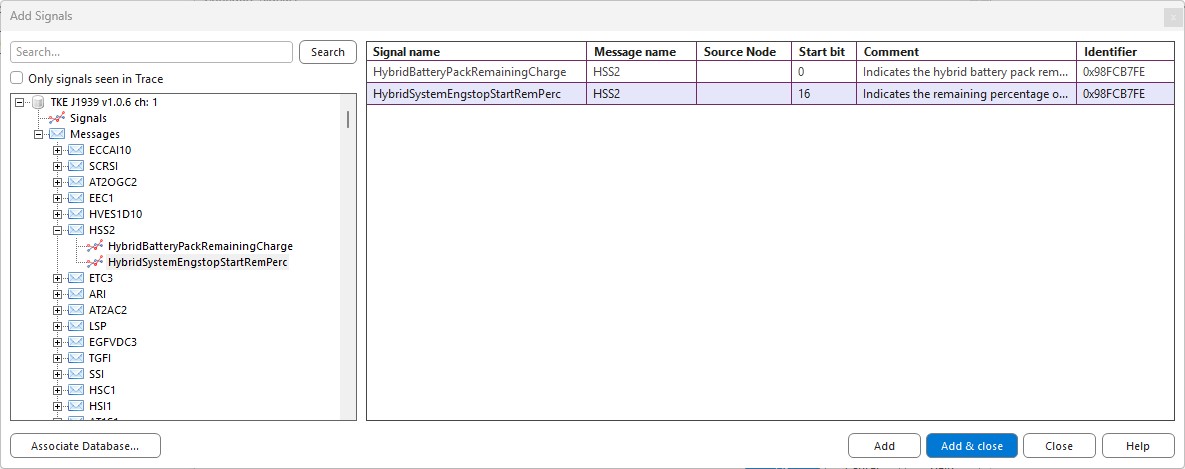
Use the search box to filter messages and signals by name, or check Show only signals seen in Trace to limit the tree-view to signals that are on the bus. See Add Signal for details.
Buttons:
- Associate Database... - Opens Associated Database dialog.
- Add - Adds selected signals to the Configured Signals list.
- Add & close - Adds selected signals to the Configured Signals list and closes the dialog.