CANopen NodeScanner Tab
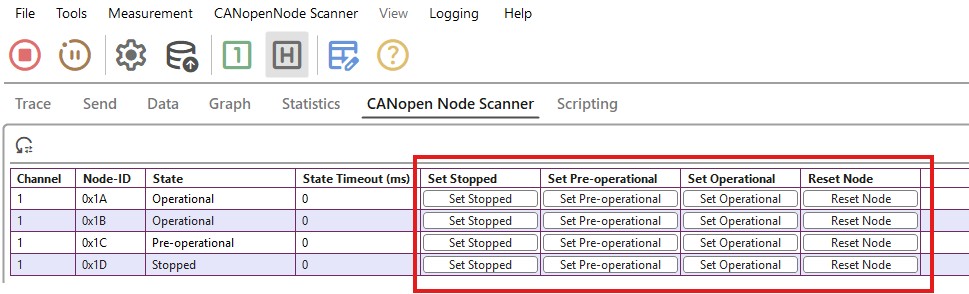
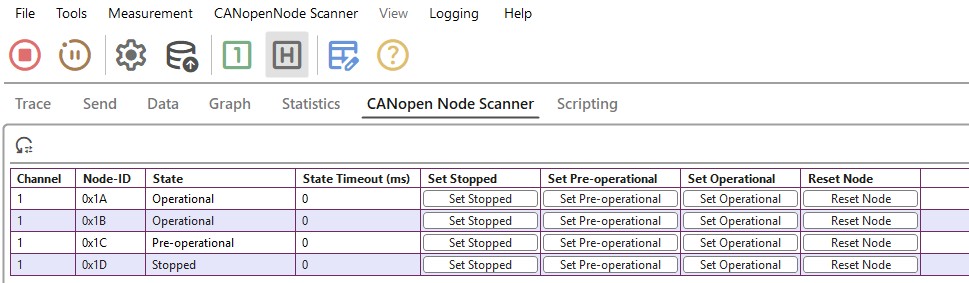
When analyzing a CANopen network, the CANopen Node Scanner tab can be used to automatically detect active CANopen nodes on the network based on the received boot-up messages. The window provides the user NMT functionality to easily control the found nodes.
CANopen NodeScanner Tab Toolbar
The toolbar provides quick access to the statistic window function. By right-clicking on the window and choosing Reset the user can clear the window of found nodes. Found nodes will be displayed again when new boot up messages are received.
| Icon | Description |
|---|---|
 |
Redraws CANopen table with current nodes |
CANopen NodeScanner Columns explanation
| Column Name | Column Description |
|---|---|
| Ch | Application channel |
| Node-ID | Displays the CAN ID of the CANopen node in hexadecimal |
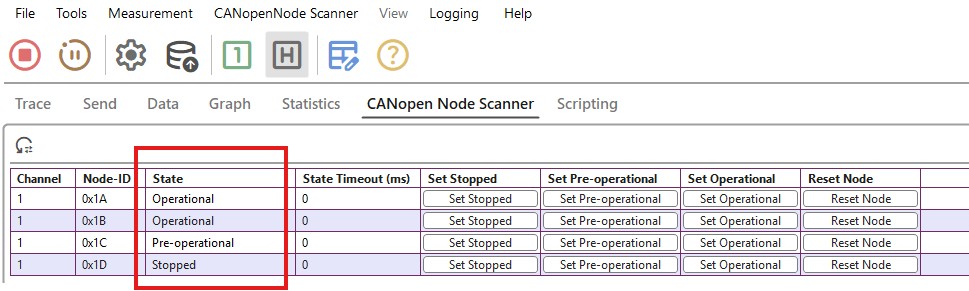
| State | Displays the NMT state of the corresponding node |
| State Time Out | Time between heartbeats, before Node Scanner treats current node as inactive |
| Set Stopped | Set the node to Stopped mode. (NMT 0x2) |
| Set Pre-operational | Set the node to Pre-operational mode. (NMT 0x80) |
| Set Operational | Set the node to Operational mode. (NMT 0x1) |
| Reset Node | Reset the node. (NMT 0x81) |
When State Time Out (ms) is set to 0, then timeout is disabled. Found nodes are not treated as inactive even if they don't produce a heartbeat.
Basic Information
The State column displays the NMT state of the node.
Node Control
By pressing the Set buttons, you can set the current node to the desired NMT state.