Add Signal
This dialog box allows adding signals to the Configure signals window, which in turn allows monitoring their runtime values in the Send tab, Data tab and the Graph tab. Once one or more databases have been associated with the project, all the signals and messages in those databases become available in the tree-view on the left side.
Dialog Layout
The Add Signal dialog box provides a tree-view of all available signals from the associated databases.
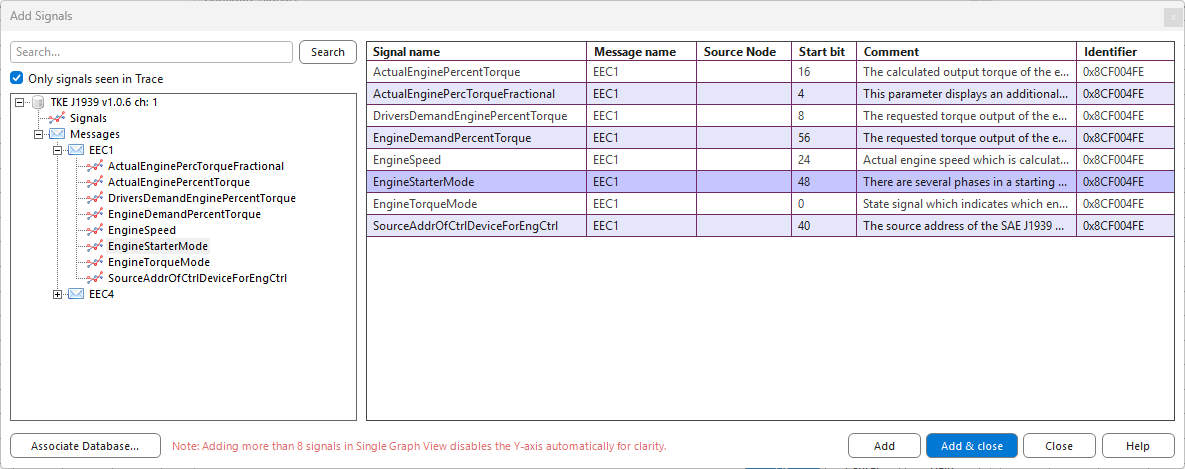
Buttons
| Button | Description |
|---|---|
| Associate Database... | Opens Associated Database dialog. |
| Add | Adds selected signals to the Configured Signals list. |
| Add & close | Adds selected signals to the Configured Signals list and closes the dialog. |
| Close | Closes the dialog without adding the selected signals. |
| Help | Opens this help page. Pressing F1 does the same. |
Search
Type a name in the search box and press Search or Enter to filter the tree-view. A message is shown if its name or the name of any of its signals contains the text, the case does not matter. If only a signal name matches, only the matching signals are shown under the message. The Signals list is filtered the same way. Messages and signals are listed in alphabetical order. Click the ✕ at the right end of the search box to clear the search and show all messages again.
Selecting a signal in the tree-view lists all signals of its message, with the selected signal highlighted.
Show only signals seen in Trace
When Show only signals seen in Trace is checked, the tree-view only contains the database messages that are currently in the Trace tab fixed view, so only signals that really are on the bus are offered. Multiplexed signals are included only if their multiplexor value has been received.
Messages received after the option was checked are included by unchecking and checking it again.